Association créée

Une rapide petite nouvelle, Une Jolie Musique est désormais une association “loi 1901” à but non lucratif.

Cela permettra de bien mieux encadrer les activités du label et du studio. Et à terme, de pouvoir gérer du matériel et organiser des événements en toute sérénité.

La prochaine étape est de rapatrier les activités web aujourd’hui associées au nom “Libre Factory”. De cette façon, la gestion du serveur, des sites webs, etc, tout sera géré dans le cadre d’Une Jolie Musique.

L’objectif est de pouvoir à terme proposer aux artistes que nous suivons:

  • La production des enregistrements, de la démo à l’album;
  • La communication “print” et “web”, de l’identité visuelle au site web;
  • L’organisation d’événements, notamment de concerts.

Cela nous permettra de mettre en oeuvre l’objet de l’association, qui est d’accompagner des projets artistiques, de tout types. Même si la musique aura toujours une part importante, nos activités sont également ouvertes aux associations, artisans, créateurs, artistes, et tous projets qui ont besoin d’aide pour assurer leur promotion et leur visibilité.

Reportage sur l’abattage à la ferme

Régulièrement, je met sur mon blog des choses que je veux pouvoir retrouver facilement pour les partager. Ce reportage de France Inter est un parfait exemple. Si la première partie ne m’intéresse pas trop, en revanche, la deuxième partie consacrée au retour à l’abattage à la ferme est tout simplement super. Notamment, l’interview de la chercheuse de l’INRIA démonte beaucoup d’idées reçues, explique comment les lobbies vegan font le jeux des grandes multinationales qu’elles prétendent combattre, etc.

https://www.franceinter.fr/emissions/comme-un-bruit-qui-court/comme-un-bruit-qui-court-18-juin-2016

Je vous recommande donc grandement de l’écouter. Et pour ma part, j’ai hâte de pouvoir acheter ma viande chez des éleveurs comme ceux qui sont dans ce reportage.

How to add Eclipse Neon launcher in GNU Linux menus and launchers

If you are a GNU Linux user, there are of course many distributions, you have your favorite one. And there is two ways to install Eclipse IDE:

But in both case, you will have to go in the installation folder to run Eclipse. Even the installer does not create a .desktop file, so you won’t find Eclipse in your distribution menu. And depending on your distro, it might not be possible to lock Eclipse icon to the launcher. As a regular Ubuntu user, with the Unity desktop, I like to have my favorite applications in the launcher.

Create a .desktop file

The solution is actually very easy: in the installation folder, create an empty file, name it Eclipse.desktop and copy paste this code:

[Desktop Entry]
Version=Neon
Name=Eclipse
Comment=Eclipse is an IDE
Exec=/home/username/path/to/eclipse
Path=/home/username/path/to/eclipse/
Icon=/home/username/path/to/eclipse/icon.xpm
Terminal=false
Type=Application
Categories=Utility;Application;Development;

Then, change the properties of the files so it can be executed. Just double click on it, and Eclipse should start. You will be able to lock the icon to the Launcher.

eclipse-in-the-launcher

Of course, please change the path to your Eclipse installation. And if you have many installations, you can change the name field to make it more clear in the menu. You can also change the filename.

Add Eclipse to your menu

You now have a cool desktop launcher, but it is not yet available in your menu. To do that, copy the Eclipse.desktop file in:

/home/username/.local/share/applications

If you still can’t find Eclipse in the menu, just log out from your session or restart your computer. That should be good.

eclipse-in-the-menu

Improve the GNU Linux installer

I opened a bug on Bugzilla, for I think that the Oomph based installer should create the .desktop. If you agree with me and want to participate to the discussion, it is here:
https://bugs.eclipse.org/bugs/show_bug.cgi?id=494735

By the way, creating a .desktop file is really a standard recommended by the Freedesktop.org. Gnome and KDE are following this standard:

USS and the Marketplace Client

Two weeks ago, I started my new job, Product Manager at the Eclipse Foundation. I will be in charge of developing new features and services for the Eclipse user community. Eclipse users and contributors, my plan is to make your life easier 😉

For my first blog article about the Eclipse platform, I would like to introduce a new service available for the user community: Eclipse User Storage, aka the USS. It is an API for projects to store data on Eclipse Foundation servers, linked to a user account.
Java - Boardcluster - website-index.html - Eclipse _129The MPC is one of the the first Eclipse projects to use the USS. It’s intent is to help users share their favorite plugins between many installations or workstations: the Marketplace Client.

Available since Neon M6 and M7, the Marketplace Client or “MPC” is very useful to install and share your favorite Eclipse plugins. By sharing, I mean that if you are using the same Eclipse account on many workstations, you are able to retrieve your favorites through the MPC, and install them. Life made easy, in a sense, no?

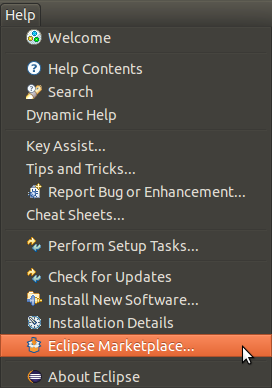
So, where to find this wonderful tool? Just open the “Help” menu, and look for “Eclipse Marketplace”.

It opens a new window, dedicated to the MPC. Your workbench is still available while you’re browsing and installing packages.
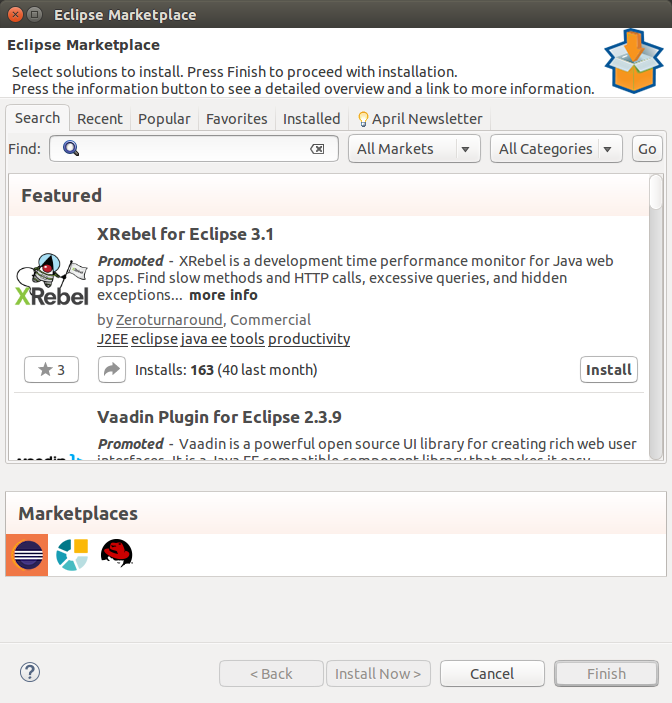
Eclipse Marketplace _131

Now, let’s see how you can use the sharing feature. Go to the “Favorites” tab. The first time you use the MPC, this tab will be empty. Just click on “Log in to view your favorites” and fill the form with your Eclipse account information.
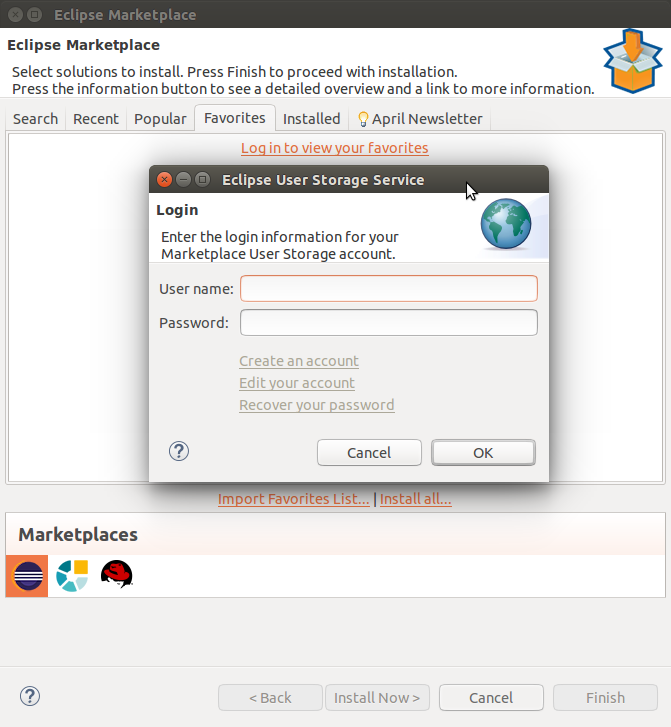
Eclipse Marketplace _134

If you have the “Secure Storage” service activated in Eclipse, you might have to configure that too.

To add a package as a favorite, just click on the star button below a project’s logo. You can do that on any tab of the MPC. Of course, you can search some packages on the “Search” tab. However, I would recommend that you go in the “Installed” tab, and add your favorites from there.

Of course, you can also go to the Eclipse Marketplace website and manage your favorites there. And if you already have favorites there, they will be automatically imported in the MPC.

Go back to the “Favorites” tab:
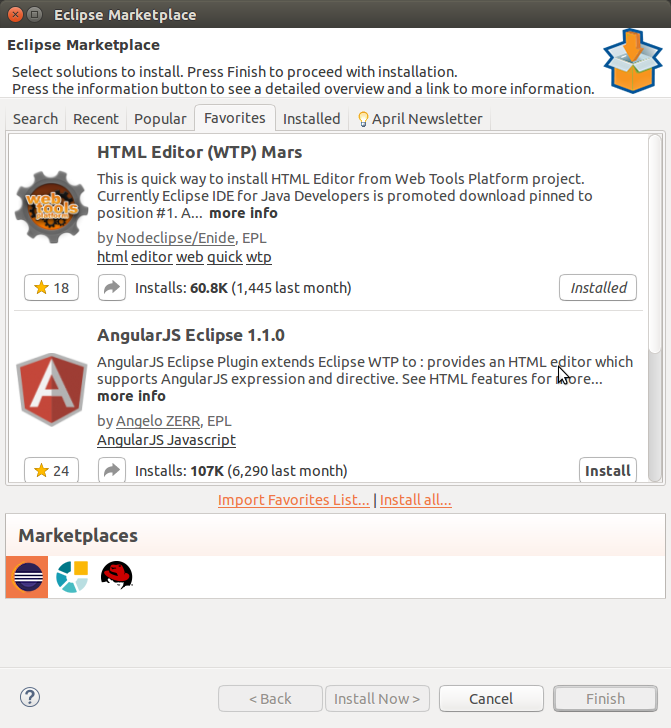
Eclipse Marketplace _136

You can also click on “Import Favorites List…” and copy paste the link of the favorites of a user. You can try if you want with the  my favorites link on the Marketplace website:
https://marketplace.eclipse.org/user/ttoine/favorites

If you are using Eclipse on many devices, just repeat the same thing. You can install your favorite packages across multiple Eclipse installations using the MPC. Just click on the “Install” button of a package. Of course, you might have to restart Eclipse once you’re done.

The MPC is now available in Eclipse Neon, so please, install Neon M7, test it and install plugins! And if you find a bug, please report it here:
https://bugs.eclipse.org/bugs/enter_bug.cgi?product=MPC
Feedback will allow us to make it even better!

One last point to explain: where are your favorites being stored? As explained at the beginning of this article, the Marketplace Client is using the USS (User Storage Service). So your favorites are saved with your Eclipse user account.

At the moment, only two projects are using USS: MPC and Oomph. But of course, this it can be used by any Eclipse project.

So, if you want to play with test the api, the documentation is available on the wiki:
https://wiki.eclipse.org/Eclipse_USS

USS and the Marketplace Client

Version française en cours…

Two weeks ago, I started my new job, Product Manager at the Eclipse Foundation. I will be in charge of developing new features and services for the Eclipse user community. Eclipse users and contributors, my plan is to make your life easier 😉

For my first blog article about the Eclipse platform, I would like to introduce a new service available for the user community: Eclipse User Storage, aka the USS. It is an API for projects to store data on Eclipse Foundation servers, linked to a user account.

Java - Boardcluster - website-index.html - Eclipse _129The MPC is one of the the first Eclipse projects to use the USS. It’s intent is to help users share their favorite plugins between many installations or workstations: the Marketplace Client.

Available since Neon M6 and M7, the Marketplace Client or “MPC” is very useful to install and share your favorite Eclipse plugins. By sharing, I mean that if you are using the same Eclipse account on many workstations, you are able to retrieve your favorites through the MPC, and install them. Life made easy, in a sense, no?

So, where to find this wonderful tool? Just open the “Help” menu, and look for “Eclipse Marketplace”.

It opens a new window, dedicated to the MPC. Your workbench is still available while you’re browsing and installing packages.

Eclipse Marketplace _131

Now, let’s see how you can use the sharing feature. Go to the “Favorites” tab. The first time you use the MPC, this tab will be empty. Just click on “Log in to view your favorites” and fill the form with your Eclipse account information.

Eclipse Marketplace _134

If you have the “Secure Storage” service activated in Eclipse, you might have to configure that too.

To add a package as a favorite, just click on the star button below a project’s logo. You can do that on any tab of the MPC. Of course, you can search some packages on the “Search” tab. However, I would recommend that you go in the “Installed” tab, and add your favorites from there.

Of course, you can also go to the Eclipse Marketplace website and manage your favorites there. And if you already have favorites there, they will be automatically imported in the MPC.

Go back to the “Favorites” tab:

Eclipse Marketplace _136

You can also click on “Import Favorites List…” and copy paste the link of the favorites of a user. You can try if you want with the  my favorites link on the Marketplace website:
https://marketplace.eclipse.org/user/ttoine/favorites

If you are using Eclipse on many devices, just repeat the same thing. You can install your favorite packages across multiple Eclipse installations using the MPC. Just click on the “Install” button of a package. Of course, you might have to restart Eclipse once you’re done.

The MPC is now available in Eclipse Neon, so please, install Neon M7, test it and install plugins! And if you find a bug, please report it here:
https://bugs.eclipse.org/bugs/enter_bug.cgi?product=MPC
Feedback will allow us to make it even better!

One last point to explain: where are your favorites being stored? As explained at the beginning of this article, the Marketplace Client is using the USS (User Storage Service). So your favorites are saved with your Eclipse user account.

At the moment, only two projects are using USS: MPC and Oomph. But of course, this it can be used by any Eclipse project.

So, if you want to play with test the api, the documentation is available on the wiki:
https://wiki.eclipse.org/Eclipse_USS

Fond d’écran – Printemps 2016

Un peu de retro-gaming, c’est dans l’air du temps

181H-

Retrouvez de superbes images libres de droits sur Gratisography. Cliquez sur l’image pour la télécharger en grand depuis leur Dropbox.